

Parental Controls: Screen Time vs Family Link vs Mova — Which Should You Choose?
Short answer: Android — Family Link, iPhone — Screen Time. But limits are usually set once and forgotten, while every evening still ends with the same argument: “just five more minutes.” On iPhone, there’s Mova: the same system-level blocking, except games open not after your approval, but after a daily English lesson — and the minutes are counted automatically.

Roman Shkabko · 9 min read
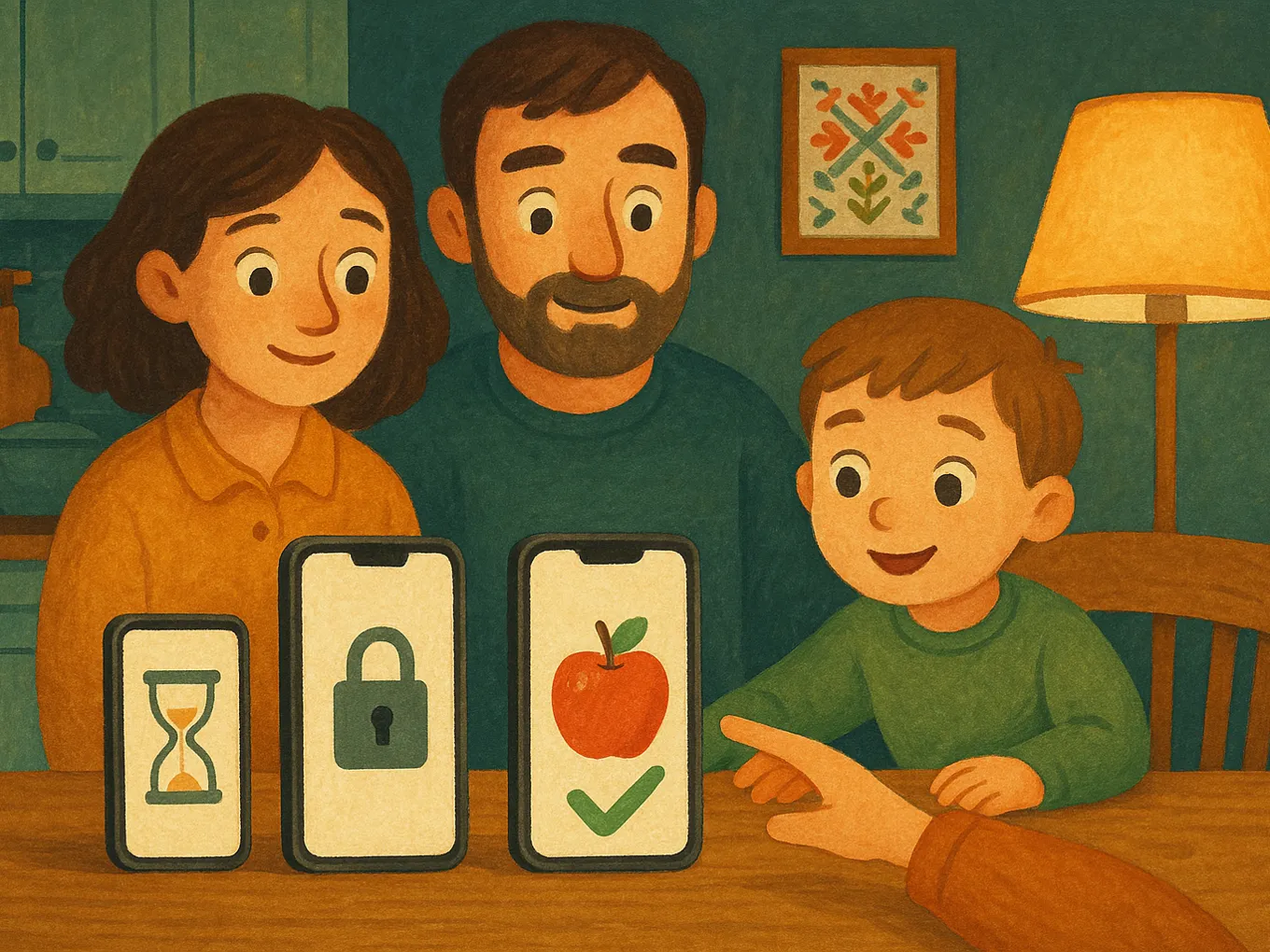
Screen Time (Apple): built-in control for iPhone
Part of iOS, not a separate app. Remote management requires a child Apple ID and Family Sharing. Step-by-step setup is in the article how to set up parental controls on iPhone.
What it can do:
- Limits for apps and categories (games, social media, entertainment) — a new game from the App Store is immediately counted under the category limit.
- Downtime — a schedule when only allowed apps work.
- 18+ content filtering and Ask to Buy.
- Weekly reports: how much time and in which apps.
- A passcode without which settings can’t be changed.
What it can’t do: there is no geolocation (that’s in the separate Find My), and reports are not very detailed. The limit is the same every day, no matter what the child did during the day: it doesn’t distinguish an evening after homework from one without it. And the system has known loopholes — how to close them, we explain in the article what to do if your child bypassed the Screen Time passcode.
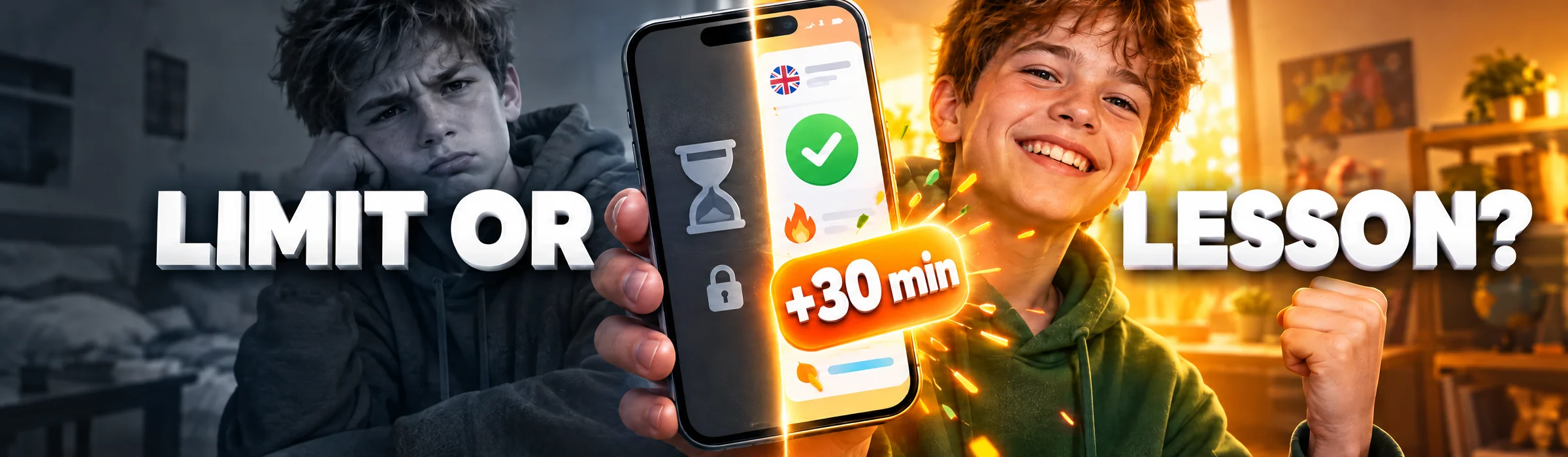
Family Link (Google): control for Android
A free Google service for a child’s Android phone or Chromebook. You create a child Google account, link it to yours, and manage it from your phone — the parent app is available for both Android and iPhone.
What it can do:
- Daily limits and limits for individual apps.
- Bedtime — schedule-based blocking.
- Approval for installs from Google Play.
- Filters in Google Play, Chrome, and YouTube.
- Built-in geolocation and one-tap phone lock.
What it can’t do: after age 13, the child can unlink the account themselves — you’ll get a notification, but control will disappear. Reports are basic, and it doesn’t filter inside apps (specific YouTube channels). We cover that in the article how to block YouTube, TikTok, and games on a child’s phone.
Mova: screen time as a reward for a lesson
Both tools above are about prohibition: the parent sets a limit, the child fights it, and after a month no one revisits the limit anymore. Mova is about an exchange that happens automatically every day. Games, social media, and video on the child’s iPhone are blocked and open for the minutes they earn with a daily English lesson. Mova uses the same Apple system mechanism as Screen Time, so it’s no easier to bypass.
- The child earns it, they don’t beg for it. A “Super” test gives 30 minutes, “Good” gives 20, and all the day’s tests marked “Super” add another 10. How much to give is up to you: the reward can be changed or turned off. And no one can manually add minutes — not the child, not you, even when you feel like giving in in the evening. So there’s simply no one to ask for “just five more minutes” from: the only option is to take the lesson.
- Nothing needs to be tracked by hand. Minutes are added automatically, games open only when earned, and the balance is shared across all the child’s devices. Whether unused minutes expire at night is also up to you.
- The lesson adapts itself. No placement test: the level adjusts daily to the result, and words return for review at increasing intervals until they stick.
- Blocks by category. A new game in the same category is blocked automatically, and the list changes only with your PIN.
- No child Apple ID or Family Sharing required. The child signs in with a code or QR code from your dashboard, without email or phone number.
- Dashboard in the browser. From any device, even Android: the child’s level, how many words they know and are learning, each day’s results, and streaks.
- No need to sit beside them. If they don’t do the lesson, the games won’t open, and you won’t need to remind them. If they don’t pass a test, they’ll get a second try an hour later with different questions, and every 5 consecutive days the child earns bonus minutes.
What it can’t do: it works only on iPhone, and it doesn’t have geolocation or website filtering — leave that to Screen Time and Find My.
Comparison table
| Screen Time | Family Link | Mova | |
|---|---|---|---|
| Child’s phone | iPhone/iPad | Android, Chromebook | iPhone |
| Management | From iPhone/iPad/Mac | From Android or iPhone | Browser on any device |
| Child account | Child Apple ID + Family Sharing | Child Google account | Not needed, sign in with a code |
| Time limits | Fixed limit + schedule | Daily limit + bedtime | Minutes are earned through lessons every day |
| Who manages the rule each day | Parent, manually | Parent, manually | The app itself |
| Blocking | System-level | System-level + install approvals | System-level, by category |
| Geolocation | No (Find My available) | Yes | No |
| Reports | Time in apps | Time in apps | What the child learned: level, words, daily result |
| Bypass | Difficult if loopholes are closed | After 13 — unlinking the account | Difficult; and fewer reasons to try, because minutes can be earned |
How to choose in a minute:
- Android — Family Link, because it’s free and system-level.
- iPhone, you just need to put the phone away at night — Screen Time with a schedule.
- iPhone, there’s a fight over the screen every evening or the “first things first” rule doesn’t hold — Mova is the best fit: the limit stops being your decision and becomes the result of the lesson.
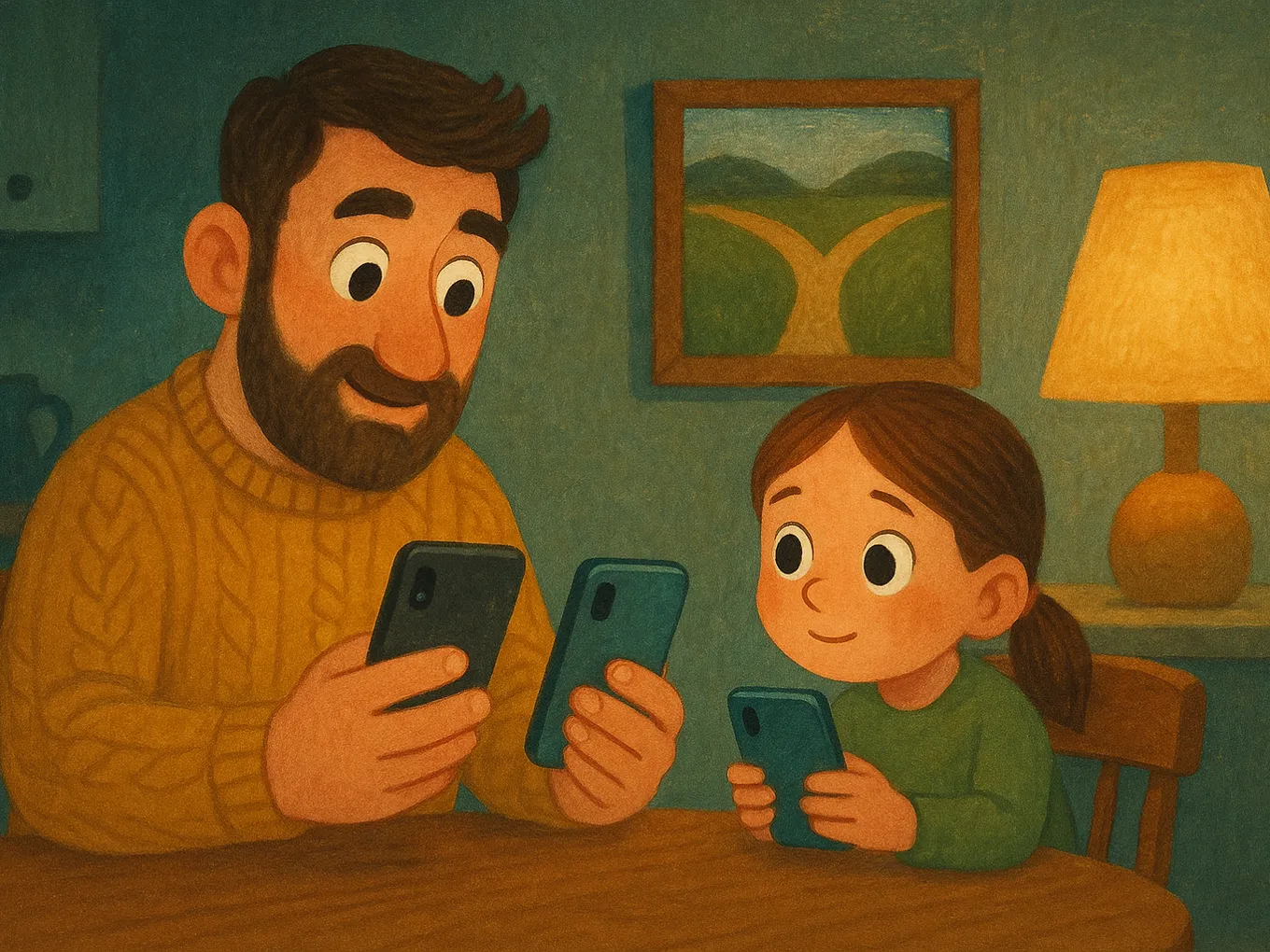
Why prohibition works worse than exchange
A limit restricts access, but it doesn’t change desire. The child still wants back to the screen and looks for the weak spot: loopholes, other people’s phones, guessing the code, fights. The older the child gets, the more the limit turns into a war with you. And limits are set and forgotten: the rule “homework first, then games” only lasts for a week if the parent has the energy to enforce it every evening.
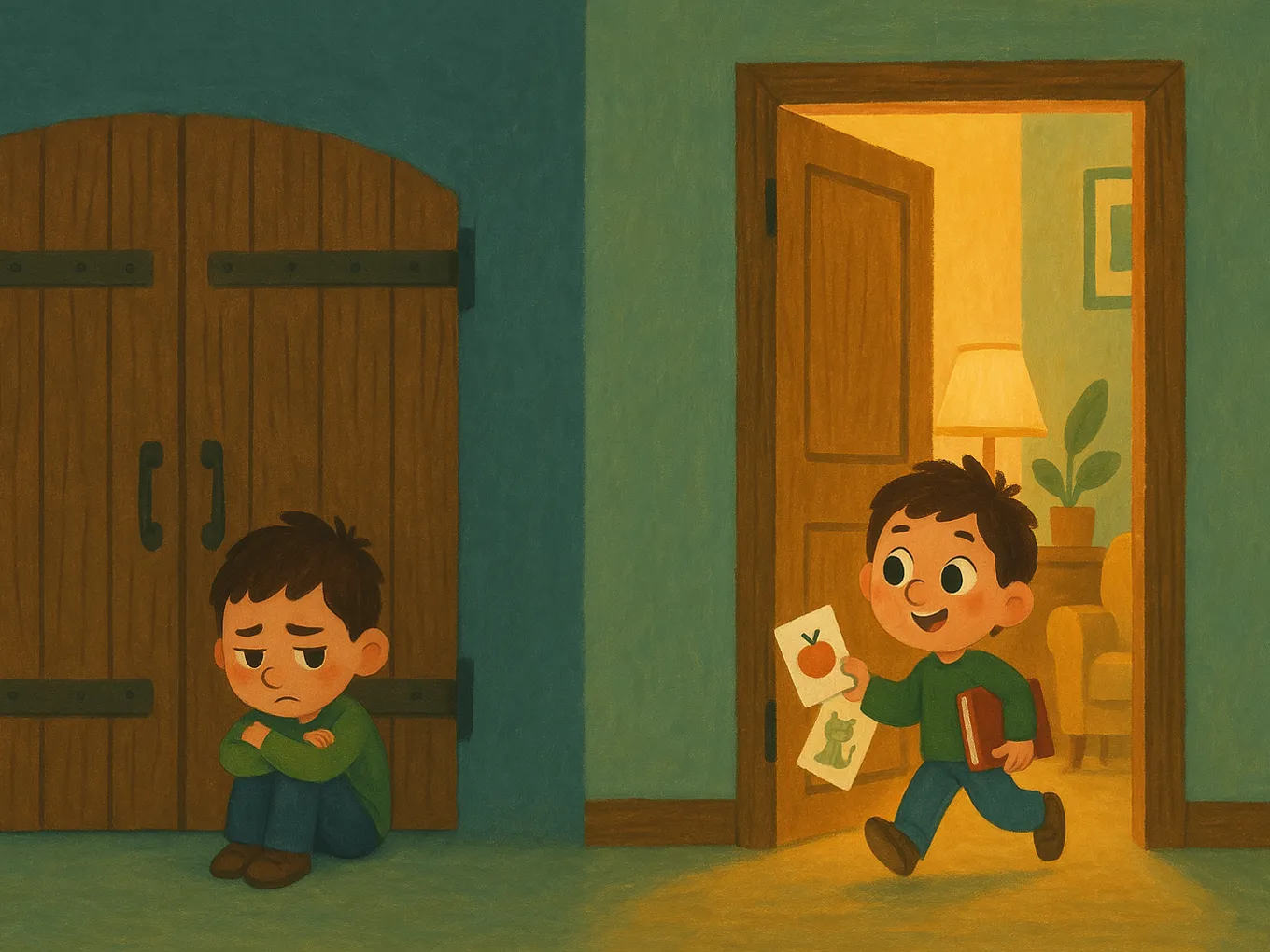
When the screen is a reward for a task, the child isn’t fighting the restriction — they’re meeting the condition: the key is in their hands. The system block remains in place, so the door can’t just be kicked open. Mova combines both: Apple blocking plus the lesson as the key, and that condition works every day without you — lesson, minutes, games unlocked.
Frequently asked questions
Which parental control is the best?
The one that matches the child’s phone. For Android — Family Link. For iPhone, Screen Time is the base, and if you want the child to earn screen time themselves instead of arguing over it, Mova is the better choice: it blocks games, social media, and video through the same system mechanism and opens them after an English lesson.
Can I install Family Link on a child’s iPhone?
No. Google manages only Android devices and Chromebooks. On iPhone, only the parent version of Family Link is installed — so you can control the child’s Android phone from your iPhone. For a child’s iPhone, your options are Screen Time or Mova.
Is there a completely free parental control app?
Yes: Screen Time is built into every iPhone, and Family Link is free for Android. Both cover limits, blocking, and content filters. What they don’t have is screen time as a reward for learning that no one has to count manually. Mova does that.
Will the child see that parental controls are on the phone?
Yes, in all tools. They deliberately don’t offer hidden surveillance — and that’s a good thing: an agreement the child knows about works better than secret monitoring. In Mova, the agreement is the mechanism itself: the child sees how many minutes they’ve earned and what they need to do to get more.
Do I need a child Apple ID and Family Sharing?
For remote management of Screen Time — yes. Mova doesn’t require them: the child signs in with a six-digit code or QR code from your dashboard, without email or a phone number, and the dashboard opens in a browser from any device, including Android.
At what age can a child turn off parental controls on their own?
In Family Link — after age 13: the child can unlink the account, you’ll get a notification, but control will disappear. Screen Time has no age limit: restrictions stay in place as long as the child doesn’t know the passcode. That’s why for teenagers it’s better to rely on an agreement, not just a ban.
If you want the screen to open after the lesson, not after the argument — and don’t want to count anything yourself — try Mova.
Also read:
- How to set up parental controls on iPhone
- What to do if your child bypassed the Screen Time passcode
- The phone at night: how to take the gadget away before bed without a battle
- Lessons with a phone in hand: how to remove distractions
- How to teach a child to study independently: the 15-minutes-a-day habit