Roblox, Brawl Stars, Minecraft: how to limit game time
Time in Roblox and Minecraft can be limited with built-in tools: in Roblox, it’s parental controls with a daily limit on the account, and in Minecraft, Microsoft Family Safety. Brawl Stars has no built-in timer — there, only iOS Screen Time works. Below are step-by-step settings for all three games and a “play as a reward” system that ends daily arguments.

Roman Shkabko · 11 min read
Why these games are so absorbing
These aren’t “bad games” — they’re just designed so a session doesn’t end on its own:
- There is no finish line. Roblox is millions of worlds, so after one there’s always another. In Minecraft, the world is endless by definition, and in Brawl Stars, a match lasts 2–3 minutes, so “just one more” feels like nothing.
- Constant rewards. Daily bonuses, season passes, trophies, skins. Miss a day — and the child feels like they “lost” a reward.
- Their friends are there. Classmates play on the same server and coordinate by voice or in chat. Leaving the game feels like leaving the yard while everyone else stays behind.
Understanding these mechanics answers the question “why can’t they just turn it off.” No one can — that’s why outside boundaries are needed. It’s easiest when the boundary doesn’t depend on your mood: in Mova, for example, the game simply closes when the earned minutes run out, and you don’t have to cut off the session yourself.
Roblox: built-in parental controls
Roblox parental controls are the most advanced of these three games. Parents link their account to the child’s and manage everything remotely from their phone.
- Create your own Roblox parent account (or sign in to an existing one).
- In the child’s app, open Settings → Parental Controls and start the linking process — Roblox will send a request to your email or show a QR code.
- Confirm the connection from your account. You’ll then get a section for managing the child profile.
What to set up right away:
- Daily time limit (screen time). Roblox will show the child a timer and block the game once the limit is used up. It works on all devices because it’s tied to the account.
- Content maturity level. For ages 7–9, set it to the lowest level — this filters out worlds with “scary stuff” and adult themes.
- Chat and communication. Limit it to “friends only” or turn it off. For accounts under 13, the filters are stricter by default, but manual settings are more reliable.
- Spending. Turn on Robux purchase notifications and a monthly spending limit — arguments about “I bought it by accident” will disappear.
If the child plays Roblox without linking it to a parent account, the minimum is to turn on Account Restrictions in privacy settings and set a PIN for changing settings.
Brawl Stars: there’s no built-in timer
In Brawl Stars (and generally in Supercell games), there’s no play-time limit — only purchase controls and age rating. So you’ll need to limit time at the phone level:
- Settings → Screen Time → App Limits → Add Limit.
- Select Brawl Stars specifically, not the whole category, and set, for example, 45 minutes a day.
- Turn on “Block at End of Limit” — otherwise the child can just tap “Ignore.”
Also lock purchases: Screen Time → Content & Privacy Restrictions → In-App Purchases → Don’t Allow. Season passes and skins in Brawl Stars are the main source of “Mom, give me your card.”
Minecraft: modes, servers, settings
Minecraft is tied to a Microsoft account, so part of the control lives in Microsoft Family Safety: there you can check game time and set limits for Windows and Xbox. On iPhone/iPad, time limits for Minecraft are set through Screen Time — just like for Brawl Stars.
Here’s what else is worth knowing:
- The game mode matters. Creative mode is calm “lego”; Survival is a cycle of “just one more night.” For younger kids, Creative mode and peaceful difficulty mean fewer emotional swings.
- Multiplayer and servers. In Microsoft account privacy settings, you can turn multiplayer off completely or allow play only with friends. Public servers are chats with strangers, so for ages 7–9 it’s better to close them off.
- Local play. Agree on a “family world” where you play together — that’s the easiest way to see what’s actually happening in the game.
One limit for all games at once: iOS Screen Time
Setting up each game separately isn’t necessary. In iOS 17+ you can set one limit for the entire “Games” category — then any new App Store game will automatically fall under the same rule:
- Settings → Screen Time → App Limits → Add Limit.
- Select the “Games” category as a whole and set a daily limit (for school-age kids, a reasonable starting point is 60–90 minutes on weekdays; age-based guidelines are in the article about screen time norms for children).
- Turn on “Block at End of Limit” and set a separate Screen Time passcode that the child doesn’t know.
- In “Always Allowed,” leave calls, maps, and educational apps.
More reliable: instead of a manual limit, use Mova. A Screen Time limit is the same every day and asks for nothing in return, and after the first week nobody looks at that number anymore. Mova blocks the “Games” category (as well as social media and video) with Apple’s system mechanism, new games are blocked automatically, and games open only for the minutes the child earns with daily English lessons. Screen Time still leaves Family Sharing, Ask to Buy, content filters, and location sharing — Mova doesn’t do those things.
For full step-by-step setup of a child’s iPhone, see the separate guide: parental controls on iPhone through Screen Time. And if your child has already learned how to bypass limits or you’ve forgotten the Screen Time passcode, there are solutions for both situations there.
Comparison of built-in controls in the three games
| Feature | Roblox | Brawl Stars | Minecraft |
|---|---|---|---|
| Time limit in the game itself | Yes, a daily limit on the account (Roblox parental controls work on all devices) | No — only through Screen Time | Partly: through Microsoft Family Safety (Windows/Xbox); on iOS — through Screen Time |
| Chat control | Yes: “friends only” or off; stricter filters under 13 | Partly: club chat can be limited by account age | Yes: multiplayer/chat can be disabled in Microsoft account settings |
| Spending control | Yes: spending limit and Robux purchase notifications | Only by blocking in-app purchases on the phone | Marketplace purchases — through Microsoft family settings or iOS purchase restrictions |
| Age-based content filter | Yes, content maturity levels | No need: one game mode (9+ rating) | Partly: choose mode and difficulty manually |
The conclusion from the table is simple: Roblox can be significantly restricted from within, Minecraft halfway, and for Brawl Stars the only working tool is phone-level limits. So the base layer is Screen Time, and in-game settings are the extra layer.
“Play as a reward”: how to agree without war
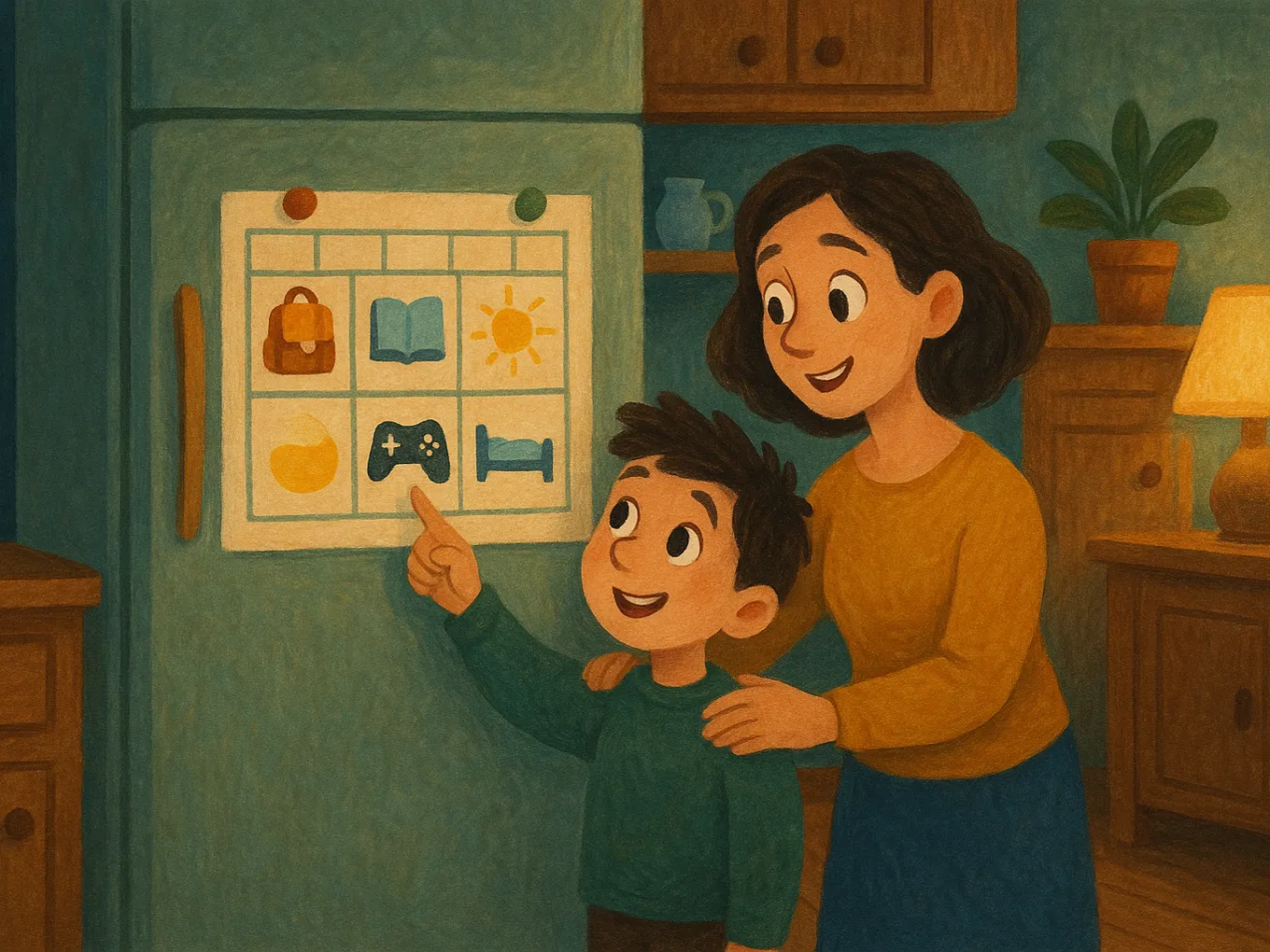
A limit that a child sees as punishment will be bypassed. A limit that works as a clear exchange will be followed. The scheme is this:
- A fixed daily amount of playtime, agreed with the child rather than announced from above. Be realistic: 30 minutes for a hardcore gamer is an invitation to conflict, while 60–90 is workable.
- Play opens after the task: homework, a walk, reading, or a short English lesson. Not “earn screen time in a humiliating way,” but “first X, then play” — like dinner before dessert.
- The end of the session is known in advance. A 10-minute warning and the rule “finish the match/save the world” mean the limit doesn’t cut off a game abruptly and doesn’t trigger a meltdown.
The weak point of this scheme is that you have to manage it every day: check whether the task was done, count the minutes, remind, turn the game on and off. After a week, people usually stop tracking it. That’s why it’s best to hand this scheme over to Mova — it runs it automatically every day. The English lesson is the “task” from point 2: a “Super” result earns 30 minutes, “Good” earns 20, and games open only for time that’s been earned. Point 3 is covered too: the child sees their balance, and you can’t just add “5 more minutes because the match isn’t over” in Mova — not for the child, not for you, even when you’re tempted to give in. The balance is topped up only by lessons, and every 5 days in a row brings bonus minutes: the same daily reward mechanic as in a game, only in service of learning. All you have to decide is how many minutes each test gives.
If conflicts are already deep and the child reacts to any boundary with a meltdown, start with a gentler plan — it’s described in the article how to get a child off the phone without fights. And to block YouTube and TikTok along with games, use the separate app-blocking guide.
Frequently asked questions
My child plays Roblox all day — is that already an addiction?
A long gaming day by itself isn’t necessarily addiction, especially during holidays or on weekends. Warning signs are when gaming pushes out sleep, meals, offline friends, and schoolwork, and any attempt to stop causes a meltdown every time. Start with clear limits and watch the reaction for 2–3 weeks: if the child adapts, it’s a habit, not an addiction.
How do I limit time in Roblox if the child plays on different devices?
The built-in limit in Roblox parental controls is tied to the account, not the device, so it works on the phone, tablet, and computer. That’s its main advantage over iOS Screen Time, which only controls Apple devices. For full coverage, combine both: a Roblox account limit plus a “Games” category limit on the iPhone.
How do I block purchases in Brawl Stars?
On iPhone: Settings → Screen Time → Content & Privacy Restrictions → iTunes & App Store Purchases → In-app Purchases → Don’t Allow. After that, purchase buttons in the game simply won’t work. Also turn on “Always Require Password” for the App Store.
Is Roblox chat safe for an 8-year-old?
For accounts under 13, Roblox filters chat more strictly and by default limits communication with strangers. But the filter isn’t perfect, so it’s worth narrowing it manually in parental controls: “friends only” or turn chat off completely. Check the child’s friends list together from time to time.
My child bypasses time limits — what should I do?
First, close the technical loopholes: a separate Screen Time passcode that the child doesn’t know, plus blocking app deletion and time changes. Then talk without punishment: bypassing limits is a sign that the rules feel unfair to the child. Often it helps to revisit the limit together and make it more realistic. And if the limit only works because someone is checking it, move that to Mova: the blocked list can only be changed with a parent PIN, and the child earns minutes through lessons on their own — there’s nothing to argue about.
You don’t have to rely on willpower to keep the “first work, then play” rule — you can automate it. Mova on iPhone blocks the “Games” category using Apple’s system mechanism: Roblox, Brawl Stars, Minecraft, and any new game are blocked automatically. The child earns game minutes through daily English lessons: a “Super” result gives 30 minutes, “Good” gives 20, and all the day’s tests at “Super” give another +10. You set the rewards yourself, the blocked list changes only with your PIN, and progress is visible in the web dashboard — no need to sit beside them. Play stays play; it just has a little English before it every day.