
Parental Controls on iPhone (Screen Time): Step-by-Step Setup for a Child
Parental controls on iPhone are built into the system and free — it’s the Screen Time feature. It limits time in apps, blocks 18+ content, turns off entertainment at night, and shows reports on how much time your child spends on the phone. Below is a step-by-step setup on the child’s phone and remote management through Family Sharing.

Roman Shkabko · 11 min read
How to Set Up Screen Time on a Child’s iPhone: 6 Steps
Instructions for iOS 17 and 18. You can set it up directly on the child’s phone — an Apple ID and Family Sharing are not required for this, but without them you won’t be able to manage restrictions from your own phone (more on that below).
- Turn on the feature. On the child’s iPhone: Settings → Screen Time → Turn On Screen Time. If the system asks whose iPhone this is, choose “This is My Child’s iPhone.”
- Set a passcode. Screen Time → Use Screen Time Passcode. This is a separate 4-digit code, not the phone unlock code. Enter it so the child can’t see it — this is the main lock for the whole system. Then the system will ask for an Apple ID for passcode recovery in case you forget it.
- Downtime. Screen Time → Downtime. Set the hours when only calls and allowed apps work — for example, from 9:00 PM to 7:00 AM. You can set different schedules for weekdays and weekends. This solves the question of the phone at night.
- App Limits. Screen Time → App Limits → Add Limit. Choose whole categories — “Games,” “Social Networking,” “Entertainment” — rather than individual apps: then a new game from the App Store will automatically fall under the limit. Set a daily limit, for example 1 hour for games. How to limit specific services is covered in the article how to block YouTube, TikTok, and games.
- Always Allowed. Screen Time → Always Allowed. Add what should work despite limits: Phone, Messages, Maps, school and learning apps.
- Content & Privacy Restrictions. Screen Time → Content & Privacy Restrictions → turn on the switch. This is where you set the age rating for the App Store and movies, the Safari web filter (adult website restrictions), and the ability to install or delete apps and make in-app purchases.
The safest option is to use Mova instead of manual limits. A limit in settings only turns off games at a set time — it doesn’t know whether the child has done something useful, and in practice no one has time to check that and keep track every day. Mova takes this part on itself: games, social networks, and videos are blocked, the child completes an English lesson every day, minutes are awarded automatically (a “Super” test gives 30, “Good” gives 20, all tests of the day on “Super” give another +10), and games unlock only for what’s earned. A new game from the App Store is blocked automatically, and the list can only be changed with the parent PIN. You can change how many minutes a test gives in the web dashboard. Screen Time still handles what Mova doesn’t: Downtime at night, 18+ content filtering, Ask to Buy, and location sharing in Family Sharing.

How to Create an Apple ID for a Child
Children under 13 can’t create a regular account — a child’s Apple ID is created by parents through Family Sharing. A child account gives them their own iCloud, purchases only with parental approval, and most importantly — remote Screen Time management.
- On your own iPhone: Settings → [your name] → Family Sharing. If the family hasn’t been created yet, tap “Set Up Family Sharing.”
- Tap Add Member → Create Child Account.
- Enter the child’s name and real date of birth — the age-based content filters depend on it, and it’s difficult to change later.
- Confirm that you are an adult: Apple will ask for card or CVV verification — this is a one-time check of parental consent, and no money is charged.
- Create an @icloud.com address and password for the child. During setup, the system will immediately offer to configure Screen Time — you can do it here or later.
- Sign in with this Apple ID on the child’s iPhone: Settings → Sign in to your iPhone.
If the child is already 13 and has an account, just add it to the family by invitation — no need to create a new one.
Family Sharing: Control from a Parent’s Phone
When the child’s Apple ID is in your family group, Family Sharing on iPhone gives you the main advantage: all settings and reports are available from your phone, so you don’t need to take the child’s phone in your hands.
- Managing restrictions: Settings → Family Sharing → Screen Time → child’s name. Here you’ll find the same limits, Downtime, and content filters as on the child’s phone, but no passcode is needed — your own passcode provides the protection.
- Reports: the same place shows how much time the child spent in each app today and over the week, and how many times they picked up the phone.
- Ask to Buy: every purchase or free download from the App Store sends you a request for approval.
- Time requests: when the limit is used up, the child can tap “Ask For More Time” — you approve or decline it from your phone. Convenient, though that button often turns into an evening negotiation.
- Location: in Family Sharing you can turn on “Share My Location” and see where the child’s phone is via Find My.
What Screen Time Controls and Where Its Limits Are
| Tool | What it does | Where it falls short |
|---|---|---|
| App Limits | Daily limit for an app or category; once used up, a “Limit Reached” screen appears | The child can watch the same YouTube through Safari if the site itself isn’t restricted; the limit resets at midnight |
| Downtime | Only calls and “Always Allowed” work during the set hours | Not flexible: it can’t do “homework first, then games” — only a clock-based schedule |
| Content Restrictions | Age filters for the App Store, music, and movies; Safari web filter; blocks installing apps | The web filter lets some sites through; content inside allowed apps is not filtered |
| Communication Limits | Who the child can call and message in Phone, FaceTime, and Messages | Doesn’t apply to third-party messengers — Telegram, WhatsApp, Viber |
| Ask to Buy | Purchases and downloads only with parental approval | Works only with a child’s Apple ID in Family Sharing |
| Reports | Stats for time in apps, unlocks, and notifications | Shows “how much,” but not “what exactly” — you can’t see the contents of messages or videos |
How much time to set in limits overall depends on age; guidelines are collected in the article how much time a child can spend on the phone. How Screen Time differs from Family Link and what Mova adds — in the Screen Time vs Family Link vs Mova overview.
Common Parent Mistakes
- An obvious passcode. A birth date or the same code as the unlock code — and the whole system stops working.
- Limits on individual apps, not categories. You blocked Brawl Stars — the child installed another game. The “Games” category closes all future installs too.
- Safari isn’t restricted. A limit on the YouTube app does not apply to youtube.com in the browser. Add the site to the limit or block it.
- App deletion is allowed. Delete the app — the limit disappears; reinstall it — it starts from zero again. This is blocked in Content & Privacy Restrictions.
- Set it and forget it. The child grows, apps change. Review reports and limits once a month or two. Or hand over the daily part to Mova: the lesson, minute awarding, and game unlocking happen automatically, and you only check progress in the web dashboard.
- Only bans, no rules of the game. The child doesn’t understand why “only one hour” and sees the limit as arbitrary. More on that in the next section.
Why Bans Alone Don’t Work
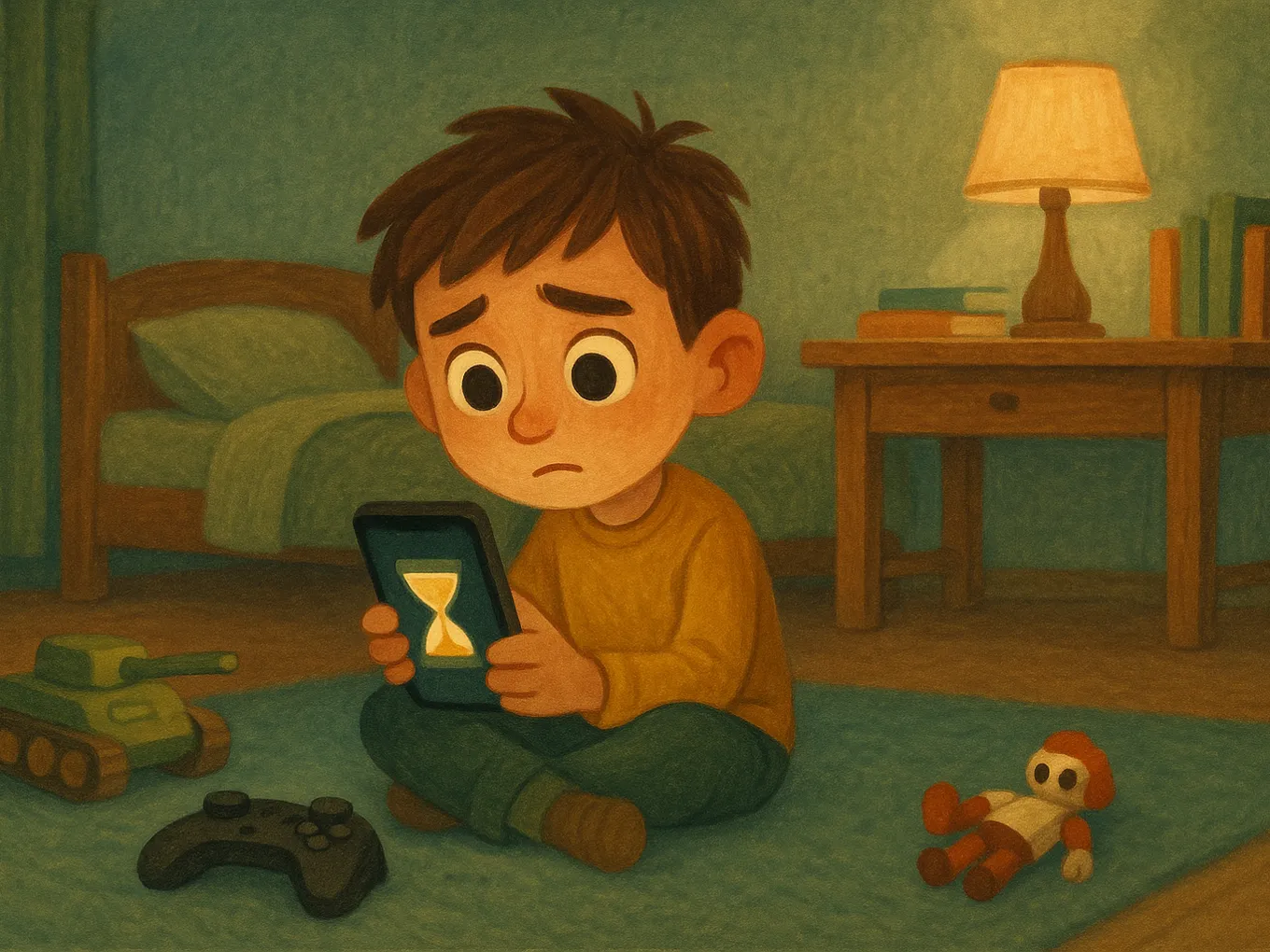
Screen Time does an excellent job answering “how to limit,” but not “what the child gets instead.” A limit without a clear logic looks like punishment to a child, so all the energy goes into getting around it: asking for 15 more minutes, peeking at the code, throwing a tantrum. The same negotiation every day — and parents either give in or end up living in watchdog mode.
Another approach works better: the screen is not forbidden fruit, but a reward for useful action. The child knows the simple rule — “do your part → get time for games” — and bypassing becomes unnecessary: access can be earned honestly faster than it can be hacked. The bans remain as protection for the night and for 18+ content, while daily motivation comes from the reward. The easiest way to build this framework is with Mova: the “homework first, then games” agreement doesn’t need daily defending or counting — the child takes the lesson, minutes are awarded automatically, and games unlock only for what’s earned. The bargaining for “just 15 more minutes” disappears too: no one can add minutes manually in Mova — not the child, not you, even when you really want to give in in the evening. The balance can only be topped up by doing a lesson, and if a test goes poorly, the next attempt opens an hour later with different questions. If the phone has already pushed everything else aside, start with the article how to wean a child off the phone without scandals.
Frequently Asked Questions
How do I set up Screen Time if the child already has their own Apple ID?
Add the child’s existing Apple ID to Family Sharing: Settings → your name → Family Sharing → Add Member → Invite Others. If the child is under 13 and the account was created as an adult account, contact Apple Support to convert it to a child account. After it’s added, Screen Time is managed from your phone.
At what age can a child’s Apple ID be created?
There is no formal lower age limit — a parent creates a child’s Apple ID through Family Sharing at any age. Under 13, the account can only be created this way, and it cannot be removed from the family — only transferred to another family group. After 13, the child can create a regular Apple ID on their own.
Will I be able to see what the child is doing on the phone?
Screen Time shows reports: how much time was spent in which apps, the number of unlocks, and the notifications received. You view them from your own iPhone: Settings → Family Sharing → Screen Time → child’s name. Screen Time does not show message content or a live screen — it’s statistics, not surveillance.
Can a child bypass Screen Time?
They can try: peek at the passcode, watch YouTube through Safari instead of the app, reinstall an app. Most gaps can be closed with settings — blocking app deletion, the web filter, and a separate passcode the child never sees. If the passcode has been compromised, change it and check the settings with our guide to bypassing and resetting the passcode.
Does Screen Time work if the parents use Android?
No, remote management requires an iPhone, iPad, or Mac for the parents. If you use Android, set up Screen Time directly on the child’s iPhone with a separate passcode — you’ll view reports on the child’s phone. The Mova parent dashboard works in a browser, so you can see the child’s English progress from Android too.
How much Screen Time should I set in the limits?
The WHO recommends no more than one hour of screen time per day for children aged 2–4. For school-age children there is no strict standard: the American Academy of Pediatrics recommends working from priorities — 9–12 hours of sleep, an hour of movement, homework, and entertainment from whatever time is left. In practice, that’s 1–2 hours of entertainment content on weekdays.
Screen Time answers “how much is allowed,” but every day someone has to be the bad cop. Mova flips the setup: games, social networks, and videos on the child’s iPhone unlock with minutes earned through a daily English lesson — a “Super” test gives 30 minutes, “Good” gives 20. Blocking works through Apple’s system mechanism, so the list can’t be changed without the parent PIN, and a new game from the App Store is blocked automatically. The child sits down for the lesson on their own because they know why, and you see progress in the web dashboard — without reminders or bargaining. Try it at mova.family.