

Forgot the Screen Time passcode or your child got around it: what to do
A forgotten Screen Time passcode can be reset in two minutes using your Apple ID, without erasing the phone or losing any settings: Settings → Screen Time → Change Screen Time Passcode → “Forgot Passcode?”. But if the issue is different — the limits are on and your child is still glued to the phone — that means they’ve found a workaround. Below are both scenarios: the official passcode reset and 10 common loopholes, with the exact setting that closes each one.

Roman Shkabko · 10 min read
Forgot the passcode: reset it with Apple ID
This is Apple’s official method, and it works on iOS 17 and iOS 18. All you need is the Apple ID linked to Screen Time and its password.
- Open Settings → Screen Time.
- Tap “Change Screen Time Passcode”, then tap “Change Screen Time Passcode” again.
- On the screen where it asks for the old passcode, tap “Forgot Passcode?” (if the button isn’t there, enter any code a few times and it will appear).
- Enter the Apple ID email and password you used when you turned on Screen Time.
- Set a new four-digit passcode and confirm it.

All limits, schedules, and content restrictions stay in place — only the passcode changes.
If your child’s phone is in Family Sharing
You can reset the child device passcode from your own iPhone — you don’t even need the child’s phone: Settings → Family → child’s name → Screen Time → Change Screen Time Passcode. Confirm with your Face ID or passcode, then set a new one. If you haven’t set up Family Sharing yet, start with the step-by-step guide to setting up Screen Time for a child — it makes passcode resets easier, and the reports come straight to your phone.

10 common loopholes kids use — and how to close each one
Kids google “how to bypass screen time” more often than parents google “how to set it up.” The good news: almost all of these tricks can be shut down with one or two toggles in the same Settings menu. Go through the table like a checklist — it takes about 10 minutes.
| Loophole | How to close it |
|---|---|
| 1. Changing the date or time zone to “skip” a limit | Update to iOS 17+ — the system now detects clock changes and won’t remove limits. Also turn on “Block at End of Limit” for each app limit. |
| 2. Delete the app and reinstall it — the timer resets | Screen Time → Content & Privacy Restrictions → iTunes & App Store Purchases → “Deleting Apps” — Don’t Allow. If you want, also set “Installing Apps” — Don’t Allow, so new apps can only be installed with your approval. |
| 3. YouTube is blocked — so they watch it in Safari | Set the limit not on the app, but on the category or website: when creating a limit, there’s a “Websites” section at the bottom — add youtube.com there. Full instructions are in the article how to block YouTube, TikTok, and games on your child’s phone. |
| 4. Screen recording or a screenshot of a message where you sent the passcode | Never send the passcode in messengers or say it out loud. The passcode should only be entered by you directly, and if it has ever been exposed somewhere, change it immediately. |
| 5. Watching over your shoulder when you enter the passcode | Enter the passcode with the screen turned away, like shielding your bank card PIN at an ATM. Change the passcode every few months and don’t use obvious combinations: birth year, 1234, 0000. |
| 6. Games inside iMessage when games are blocked | The “Games” category doesn’t catch iMessage apps. Set a separate limit for “Messages” during lesson time or remove gaming extensions: Messages → “+” → Manage. |
| 7. Siri answers questions, searches the web, and sends messages | Content & Privacy Restrictions → Content Restrictions → Siri: turn off web search and explicit language. During study time, you can disable Siri completely. |
| 8. Signing out of their Apple ID or creating a new one — and the restrictions disappear | Content & Privacy Restrictions → “Account Changes” — Don’t Allow. The Apple ID section in Settings will be grayed out, and your child won’t be able to sign out. |
| 9. TestFlight, beta versions, and web versions of apps instead of blocked ones | Blocking app installation (see #2) also blocks TestFlight. Web versions are handled through “Web Content”: use “Limit Adult Websites” plus your own list of blocked domains. |
| 10. “One more minute” and endless “Ask For More Time” requests | Turn on “Block at End of Limit” for every limit — the “One More Minute” button will disappear. Extra time requests come to you: agree in advance when the answer is yes, and don’t approve them automatically. |
You don’t have to set up every part of this table manually. On a child’s iPhone, Mova blocks games, social media, and video by entire categories using Apple’s built-in system mechanism: a new or reinstalled game is blocked automatically, and the block list can only be changed with the parent PIN, so the reinstall trick (loophole 2) won’t work. Loophole 10 also disappears in Mova: you can’t add minutes manually there — not the child, not even you, even when you’re tired in the evening and tempted to give in. The balance is topped up only by passing tests, so there’s simply no one to ask for “just one more minute.” You should still set up Apple ID sign-out blocking, the web content filter, Siri restrictions, and Family Sharing in Screen Time — Mova doesn’t do those. A full breakdown of what each tool can do is in the comparison of Screen Time, Family Link, and Mova.
How to tell if your child is bypassing the restrictions
You don’t have to catch them in the act — it all shows up in the report: Settings → Screen Time → See All App & Website Activity (for a child in Family Sharing, you can view it right from your own phone). Here’s what to watch for:
- Activity during “off-limits” hours — use after bedtime or during study hours, when downtime should be active.
- “Settings” among the top apps — your child is spending a long time in settings: most likely looking for a loophole or trying passcodes.
- Sudden drops in the graph — yesterday 5 hours, today “40 minutes,” with no change in behavior. That’s what old iOS date-change tricks look like.
- Safari suddenly jumps to the top — blocked apps have moved into the browser (loophole #3).
- A flood of time requests — while time in blocked apps keeps going up anyway.
One odd mismatch isn’t a reason for an interrogation. A pattern is a reason to first close the loophole from the table, and then have a calm conversation.
Why kids bypass restrictions: a ban without an alternative
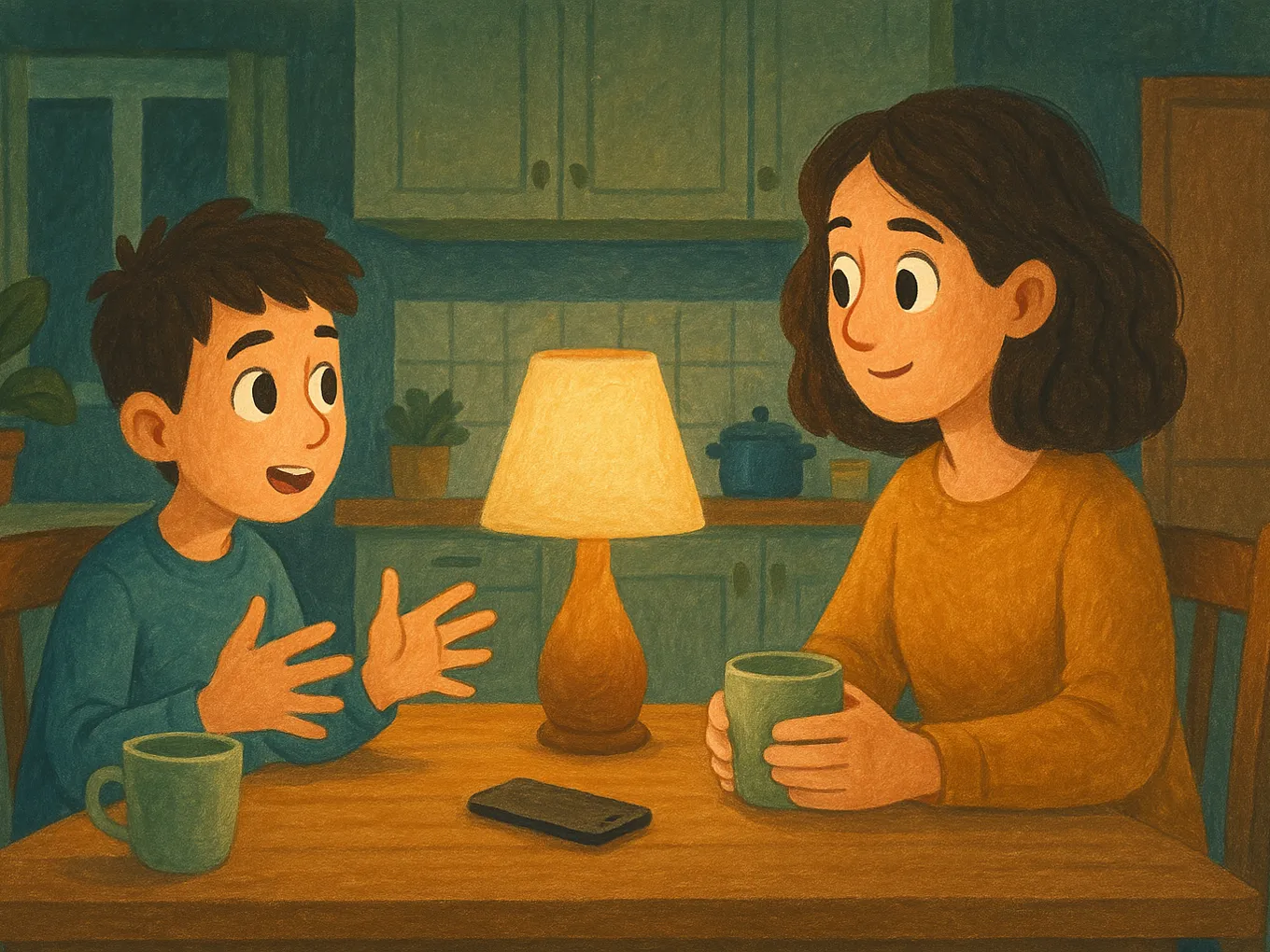
Technically, you can close all 10 loopholes in one evening. But if the restriction feels to a child like “they just took away everything interesting,” they’ll start looking for an eleventh one — their motivation is stronger, and they have more time than you do. Bypassing isn’t the core problem; it’s a symptom: the rules exist, but the child doesn’t see the point of them.
What works better than an arms race:
- An explained limit instead of a silent one. “Your phone doesn’t work after 9:00 PM because you need to get up at 7” lands very differently than a block with no explanation.
- Agreed rules. When a child has taken part in setting the limits, bypassing them means breaking their own agreement, not “beating the system.”
- A clear way to earn more time. Not beg for it, but earn it: you studied, so you got your game time. The screen becomes a reward, not forbidden fruit.
The problem with the third point is that someone has to manage that “you studied — then you play” agreement every single day: check the work, count the minutes, remind everyone. After a week, nobody keeps that chart on the fridge anymore, and the child starts looking for loopholes again. That’s why the most reliable way to keep point three working is Mova: it happens automatically there. Every day there’s a short English lesson; a “Super” test score earns 30 minutes, a “Good” score earns 20, and games unlock for exactly the time earned. If it doesn’t work out on the first try, the child can retake the test in an hour with different questions. The parent doesn’t have to count anything, and the child has no reason to break a system they can simply complete.
If the phone has already crowded out everything else and every limit ends in a meltdown, don’t start with toggles — start with a plan. You’ll find one in the article how to wean your child off the phone without fights.
Frequently asked questions
How do I reset the Screen Time passcode without an Apple ID?
There’s no built-in way to do that — and that’s a security feature, not a flaw. If the “Forgot Passcode?” button isn’t available or you don’t remember your Apple ID password, first recover access to your Apple ID at iforgot.apple.com. The last-resort option is to completely erase the iPhone and set it up as new, but then you’ll lose any data that wasn’t saved in a backup.
Why doesn’t the “Forgot Passcode?” button appear?
The button appears after several incorrect passcode attempts on the “Change Screen Time Passcode” screen. If it still doesn’t appear, the most common reason is that Screen Time was enabled without being linked to an Apple ID. Update iOS, leave the menu and go back in, and for a child’s device in Family Sharing, reset the passcode from your own phone.
Can I find out my child’s current Screen Time passcode?
No. iOS never shows the current passcode anywhere — you can only reset it and replace it with a new one. If you set the passcode on your child’s device and forgot it, reset it through your Apple ID or from the Family section on your own iPhone. After resetting, choose a passcode your child won’t guess right away: not a birth year, and not 0000.
How many passcode attempts does iOS allow?
After several incorrect attempts, iOS starts a timer: first one minute, then longer pauses that can grow up to an hour. This works in your favor — your child can’t keep guessing forever. If the Screen Time report shows many passcode attempts, that’s a reason to talk and change the passcode.
Does resetting the passcode reset Screen Time too?
No. Resetting the passcode through Apple ID does not affect limits, schedules, or content restrictions — everything stays as it was; you simply set a new passcode. It’s the fastest and safest option: your data, photos, and apps stay intact.
How do I turn off Screen Time completely?
Settings → Screen Time → scroll to the bottom → “Turn Off Screen Time,” then enter the passcode. You can’t turn it off without the passcode — first reset it through Apple ID. Before you disable it completely, think it through: without Screen Time, you’ll also lose usage reports for the phone.
You can keep closing loopholes forever — or remove the reason to look for them in the first place. Mova blocks games, social media, and video on a child’s iPhone by category using Apple’s built-in system mechanism: a new game from the App Store is blocked automatically, and the block list can only be changed with the parent PIN. To unlock entertainment, the child completes a daily English lesson and earns minutes: 30 for a “Super” test score, 20 for “Good,” plus another +10 if all tests that day are “Super.” Minutes are added automatically, and you can track progress in the web dashboard. Try it at mova.family.