How to block YouTube, TikTok, and games on a child’s phone
On iPhone, you can do this without third-party apps — using Screen Time, in three ways: set a time limit for a specific app, block an entire category (all games or social networks at once), or restrict content by age. The most practical option is category blocking: a new game from the App Store will automatically fall under the limit, while calls, maps, and school apps keep working without restrictions.

Roman Shkabko · 11 min read
All the steps below are for iOS 17+ (Settings → Screen Time). First, make sure the child’s phone has a Screen Time passcode that they don’t know — without it, any setting can be removed in ten seconds. How to set everything up from scratch, including Family Sharing, is in the guide about parental controls on iPhone.
How to block YouTube for a child
YouTube on iPhone lives in two places: the app and the youtube.com site in Safari. You need to block both, otherwise the child will just open the browser.
Step 1. The YouTube app
- Settings → Screen Time → App Limits → Add Limit.
- Expand the “Entertainment” category and select YouTube.
- Set the limit to 1 minute — that’s effectively a block: after one minute, the app grays out and asks for the Screen Time passcode.
- Turn on “Block at End of Limit,” otherwise the child can tap “Ignore Limit.”
Step 2. youtube.com in Safari
- Screen Time → Content & Privacy Restrictions → Content Restrictions → Web Content.
- Choose “Limit Adult Websites.”
- Under “Never Allow,” add
youtube.comandm.youtube.com.
An alternative for younger children: in Content Restrictions → Apps, set “12+.” YouTube has a 17+ rating and will disappear entirely, while YouTube Kids (4+) will remain.
How to block TikTok for a child
The setup is the same, with one difference: TikTok is rated 12+, so the age limit “12+” won’t remove it. We work through a time limit:
- Screen Time → App Limits → Add Limit → category “Social Networking” → TikTok.
- Set the limit to 1 minute, with “Block at End of Limit” turned on.
- In Web Content, add
tiktok.comto “Never Allow.”
If the goal is not a total ban but a controlled allowance (say, 30 minutes a day), set 30 minutes in step 2 instead of 1 minute. This often works better than a total block: the child doesn’t feel like everything has been taken away.
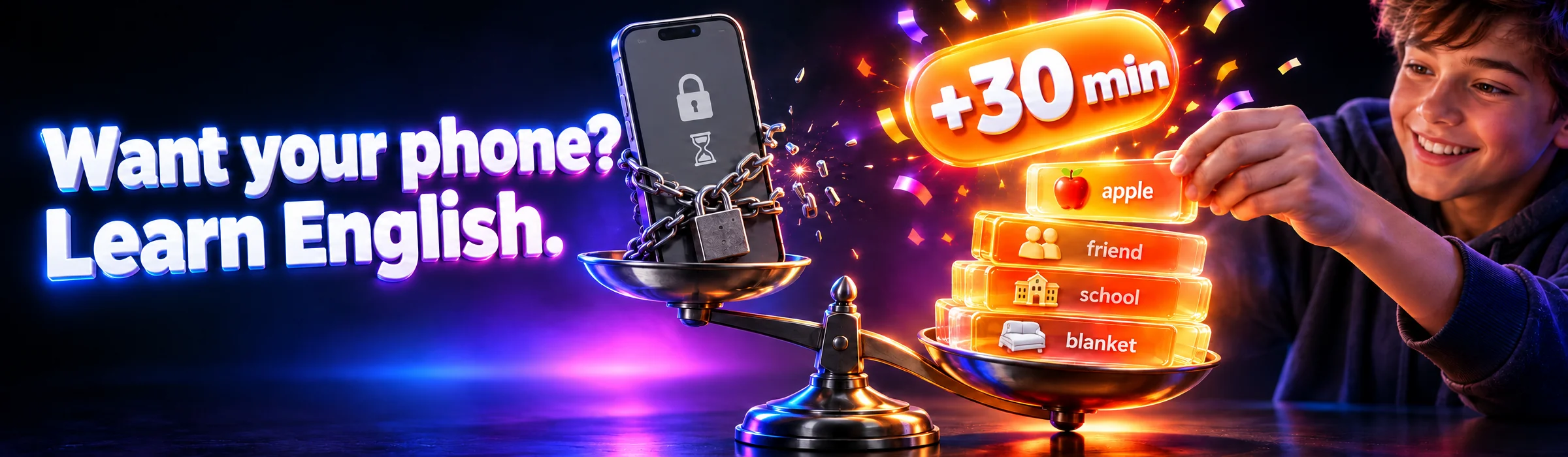
The weak point of a time allowance is that it gets set once and then forgotten, while no one checks every day whether the condition “30 minutes if homework is done” has actually been met. In Mova, for example, that condition works on its own: social media and video are locked, the child completes an English lesson every day, minutes are added automatically — 30 for a “Super” test, 20 for “Good” — and exactly the earned amount opens up. You don’t have to count or remind them.
How to block games on a child’s phone — by category
The main mistake is blocking games one by one. The child downloads a new one, and you’re back to chasing the problem. The right way is to set a limit for the whole category:
- Screen Time → App Limits → Add Limit.
- Select the “Games” category as a whole (the checkmark next to the category name, not individual apps).
- Set the time: 1 minute for blocking, or, for example, 1 hour if you want to limit game time without banning it outright.
- If needed, set different time for different days: “Customize Days” → less on weekdays, more on weekends.
What this gives you: any game the child installs from the App Store tomorrow will automatically fall under the same limit — the App Store itself assigns it to the “Games” category. The same works for “Social Networking” and “Entertainment.” Calls, messages, maps, and educational apps are not affected by a category limit — if you want, you can also add them to “Always Allowed” so they still work during downtime.
For everyday use, it’s best to set Mova instead of a manual hour limit. The hour for games in Screen Time is set once and then left alone — it doesn’t depend on homework or agreements. In Mova, games, social networks, and video are blocked by categories using the same Apple system mechanism; a new game is blocked automatically, and they open only for the minutes earned by daily English lessons: 30 for a “Super” test, 20 for “Good,” and another +10 when all the day’s tests are “Super.” You change how many minutes a test gives in the web dashboard. And there’s no way to ask for “just 5 more minutes”: no one can add minutes manually in Mova — not the child, not you, even when it’s tempting to give in. They can only be earned. Screen Time still covers what Mova doesn’t do: Family Sharing, Ask to Buy, and age-based content filtering.
For specifics about particular games — donations, “energy,” why a child asks for “5 more minutes because the match isn’t over yet” — there’s a separate article: how to limit time in Roblox, Brawl Stars, and Minecraft.
How to stop new apps from being downloaded
To keep a child from getting around blocks with new apps (another video player instead of YouTube, a browser instead of Safari):
- Screen Time → Content & Privacy Restrictions → iTunes & App Store Purchases.
- Installing Apps → Don’t Allow. The App Store icon will disappear from the screen.
- In the same menu, it’s worth disabling “In-app Purchases” — that will block donations in games.
A softer option is “Ask to Buy” in Family Sharing: the App Store stays available, but every download comes to your phone as a request that you approve or deny. For teenagers, this is usually more appropriate than a complete ban.
How to put a password on an app on iPhone
The request for a “password for an app” in iOS is handled in two ways:
- Through Screen Time (any iOS 17+): set a 1-minute limit for the app — after a minute, it can be opened only by entering the Screen Time passcode. That’s the “password for an app” known only to you.
- Through Face ID (iOS 18+): press and hold the app icon → “Require Face ID.” The app will open only after the owner’s Face ID or the phone passcode. This is useful when a child uses your phone: you can lock the bank and email, while everything else stays accessible.
Guided Access: what it is and when it helps
Guided Access locks the iPhone to one app: the Home button, app switching, and, if you want, parts of the screen won’t work. Here’s how to turn it on:
- Settings → Accessibility → Guided Access → turn it on and set a passcode.
- Open the app you want and triple-click the side button.
- Tap “Start.” You can exit only with a triple-click and the code.
When it’s useful: you hand your phone to a five-year-old to watch a cartoon, and they can’t leave the player and wander into TikTok or your messages. For ongoing control of a child’s phone, Guided Access isn’t the right tool: it works for one session in one app, not “all the time in the background.”
Comparison of methods
| Method | What it blocks | How easy it is for a child to обходить | Who it’s for |
|---|---|---|---|
| Limit for a specific app | One app (YouTube, TikTok) | Yes, if the site in Safari and download alternatives aren’t blocked | When the problem is 1–2 specific apps |
| Category limit | All games / social networks / video, including new ones | Hard: new apps in the category are blocked automatically | The main practical option for ages 6–14 |
| Age-based content restriction (12+) | Apps with a higher rating disappear from the screen | Hard, but it doesn’t affect 12+ apps (TikTok) | Younger children, a more radical cleanup |
| Blocking app installation | The App Store entirely | No, as long as they don’t know the Screen Time passcode | An add-on to any of the methods above |
| Guided Access | Everything except one open app | No, but it only lasts for one session | When your phone is in a small child’s hands |
The weak point of the whole setup is one thing: the Screen Time passcode. If the child has seen it, the restrictions are basically gone. What to do in that case is covered in the article about a forgotten or bypassed Screen Time passcode. And if you’re unsure what to choose for daily control, there’s a comparison of Screen Time, Family Link, and Mova.
Why blocking without an alternative leads to conflict
Technically, blocking an app takes 5 minutes. Then the non-technical part begins: a child who spent 3 hours a day on TikTok won’t suddenly start reading books — they’ll start a war over the passcode, other people’s phones, and your nerves. The AAP recommends that for children 5+, you don’t focus on a rigid number, but on a family plan: first meet the basic needs — 9–12 hours of sleep, an hour of physical activity, schoolwork, live communication — and only then let screen time fill what’s left.
That’s why blocking works when it answers the question “what instead?” A free hour has to be filled with something: a club, a walk, a shared activity — or a clear condition for getting screen time back. The child needs to know the rules of the game: “games open after homework/English/at 4:00 p.m.,” not “Dad is angry today, so everything is closed.” But even such an agreement is hard to maintain after a week: parents get tired of checking and counting. Mova does it automatically every day: lesson, minutes are added automatically, games open only for what’s earned — there’s no one to argue with about the code. Even a failed test doesn’t end in a fight: in an hour, they can try again with different questions. If the phone has already crowded out everything else, start with the article how to wean a child off the phone without a meltdown, and age-based time norms are covered in a separate breakdown.
Frequently asked questions
How do I put a password on an app on iPhone without third-party apps?
There are two built-in ways. First: Screen Time → App Limits → set a 1-minute limit for the app you want — after a minute, it will ask for the Screen Time passcode. Second (iOS 18+): press and hold the app icon → “Require Face ID” — the app will open only after Face ID or the phone passcode.
Is there a child mode on iPhone?
iOS doesn’t have a separate “child mode” button. Screen Time does that job: app and category limits, age-based content restrictions, and blocking purchases and downloads. All of this is protected by a separate passcode known only to you.
What if a child deletes YouTube and installs it again?
Reinstalling won’t help if the limit is set on the “Entertainment” category or on the app itself — after installation, the limit applies again. Also block app installation: Content & Privacy Restrictions → iTunes & App Store Purchases → Installing Apps → Don’t Allow.
How can I limit game time for a child instead of banning games entirely?
Set a limit for the “Games” category: Screen Time → App Limits → “Games” category →, for example, 1 hour per day. The child decides how to use that hour, and any new game from the App Store automatically falls under the same limit.
Can I block YouTube but keep YouTube Kids?
Yes. Set a 1-minute limit on the main YouTube app and block youtube.com in web content, and leave YouTube Kids alone or add it to “Always Allowed.” The 12+ age restriction also works: YouTube has a 17+ rating and disappears, while YouTube Kids stays.
What’s more reliable: Guided Access or Screen Time?
They’re tools for different tasks. Guided Access locks the phone to one app for a specific session — useful when you hand your own phone to a small child. Screen Time works continuously on the child’s phone: limits, categories, and download blocking. For everyday control, Screen Time is the one you need.
If you made it to the conflict section, you already understand the main point: blocking is only half the solution. The other half is a condition the child understands for when screen time comes back.
We made that condition automatic. Mova on iPhone blocks categories — games, social networks, video — using Apple’s built-in system mechanism, so every new game from the App Store is blocked automatically. To unlock entertainment, the child does a short English lesson: words, a rule, a test — and earns their screen minutes: 30 minutes for a “Super” test, 20 minutes for “Good.” The list of blocked items can only be changed with your PIN, and progress is visible in the web dashboard.
Instead of a daily war over the passcode, there’s a simple rule: lesson first, YouTube later. Try it at mova.family.